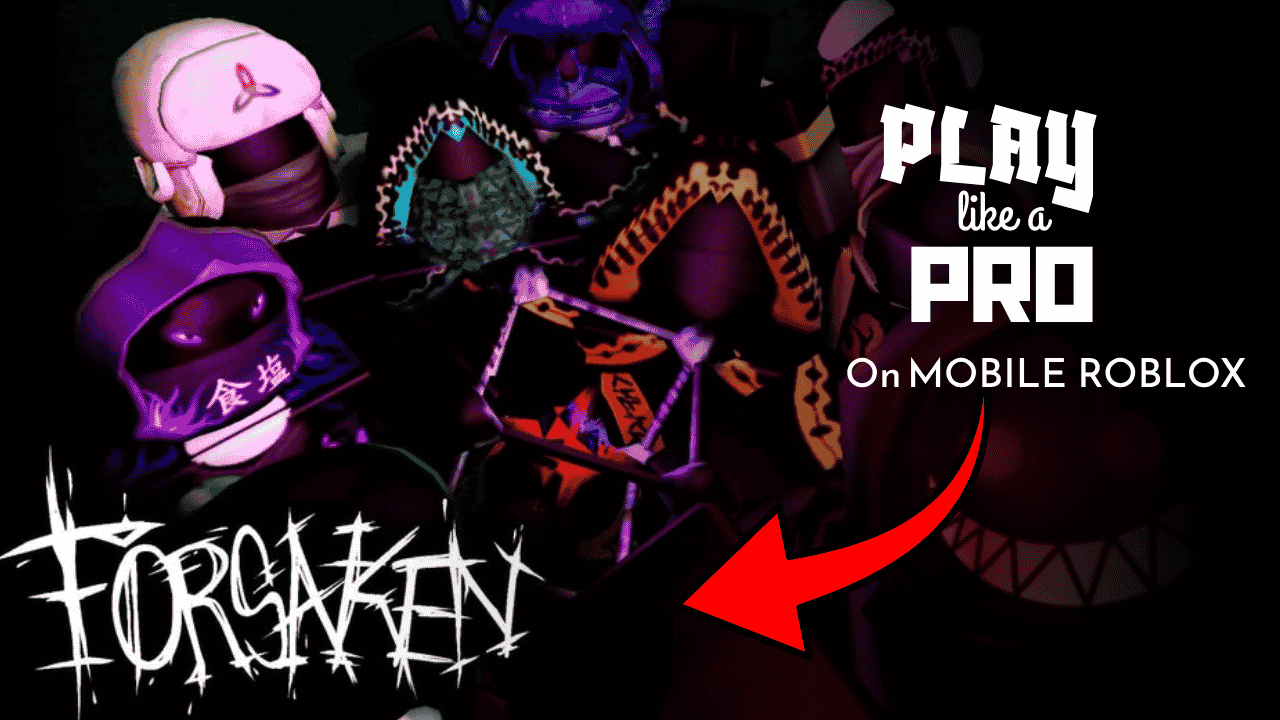
How to Play Forsaken on Mobile Roblox: Pro-Level Tips & Tricks
How to Play Forsaken on Mobile: Your Complete Touch Control Guide (2026)
Let’s be real for a second. Playing a fast-paced, competitive game like Forsaken on a phone isn’t easy. Your thumbs are doing the work of a keyboard and mouse. The screen is small. Notifications pop up. Your battery drains. And yet, here you are, wanting to get better. That’s awesome. Because playing how to play Forsaken on mobile well isn’t about having the fanciest phone or the fastest reflexes. It’s about setting up your game the right way, understanding what works on touchscreens, and playing smart.
I’ve spent countless hours testing, tweaking, and learning what actually works when you’re playing Forsaken on a phone. This guide isn’t filled with complicated jargon or pro-gamer speak. It’s just honest, practical advice from someone who’s been in your shoes. Whether you’re a complete beginner or you’ve been playing for a while but feel stuck, this is for you. Let’s break down exactly how to play Forsaken on mobile and start winning more matches, one tap at a time.
What Is Forsaken, and Why Does Mobile Feel Different?
First things first. If you’re new here, Forsaken is a Roblox horror survival game. One player is the Killer. Up to ten players are Survivors. Survivors repair generators to power exit gates and escape. The Killer tries to stop them. Simple concept, intense gameplay.
Now, why does it feel harder on mobile? Because touch controls add a layer of complexity. On PC, you have dedicated keys for everything. On mobile, your thumbs share one screen for movement, actions, camera, and abilities. A missed tap can mean getting caught. A delayed swipe can mean missing a dodge. It’s not your skill that’s the problem—it’s the setup.
The good news? Once you optimize your mobile experience, you can compete just as well as anyone else. Maybe even better, because mobile players often develop sharper game sense to make up for control limitations. Let’s get your phone ready.
Setting Up Your Phone for Forsaken: The Foundation
Before you jump into a match, take five minutes to set up your game properly. This step alone will improve your performance more than any fancy strategy.
Step 1: Optimize Your Graphics and Performance
Your phone isn’t a gaming PC, and that’s okay. Go to Settings > Graphics in Forsaken and lower everything to Medium or Low. Turn off fancy effects like bloom, shadows, and high-quality particles. Why? Because smooth, consistent frames matter more than pretty visuals. If your game stutters during a chase, you lose. Period.
Also, close other apps before playing. Free up your phone’s memory. Turn on “Do Not Disturb” mode so calls or notifications don’t interrupt your match. If your phone gets hot, take off the case or play in a cooler spot. Heat throttles performance, and you don’t want that mid-game.
Step 2: Customize Your Touch Controls
This is the most important step for how to play Forsaken on mobile. Go to Settings > Controls > Customize Layout. Don’t keep the default setup. Move buttons where your thumbs naturally rest.
- Place your virtual joystick on the left side, slightly higher so your thumb doesn’t cramp.
- Put your sprint button right next to the joystick for quick access.
- Move your interact/action button to the right side, within easy reach of your right thumb.
- Keep your ability buttons visible but not cluttering your main view.
Pro tip: Increase the size of your interact and ability buttons slightly. Bigger targets mean fewer missed inputs during tense moments. Also, enable “Show Stamina Bar Always” so you’re never surprised when you run out of sprint.
Step 3: Adjust Sensitivity and Audio
Touch sensitivity isn’t one-size-fits-all. Start with medium sensitivity for your camera. If you feel like you’re over-rotating, lower it. If turning feels sluggish, bump it up slightly. Test in a private server or custom lobby first.
For audio, turn your volume up and use headphones if possible. Footsteps, generator repairs, and Killer ability sounds are your best friends. On mobile, it’s easy to miss subtle cues with phone speakers. Headphones give you the spatial awareness you need to react faster.
Your First Matches: Simple Steps to Survive and Learn
Starting out on mobile can feel overwhelming. Here’s a no-stress plan for your first few games.
Pick Beginner-Friendly Characters
Don’t try to master complex characters right away. As a Survivor, start with Noob. His Slateskin Potion is forgiving—it gives you a damage-reduction buffer when you mistime a dodge. As a Killer, start with Slasher. His abilities are straightforward: tap to attack, tap to lunge, hold for a bigger move. Simple kits let you focus on movement and map awareness instead of ability management.
Learn the Basic Controls (Without Overthinking)
- Left thumb: Move your character with the virtual joystick.
- Right thumb: Control the camera by swiping, tap buttons to interact or use abilities.
- Sprint: Tap the sprint button when you see the Killer’s terror radius (heartbeat gets louder).
- Interact: Tap near generators, gates, or pallets to use them.
- Dodge: Swipe opposite the Killer’s direction when they swing.
Don’t try to memorize everything at once. Focus on one thing per match. Match 1: Just practice moving and sprinting. Match 2: Add in generator repairs. Match 3: Try a simple dodge. Small steps build confidence.
Survive Your First Three Games (Without Frustration)
- Stay near teammates early. You don’t need to coordinate perfectly. Just being near others splits the Killer’s attention.
- Prioritize generators over hero plays. One completed generator is permanent progress. A risky rescue often leads to two downs.
- If chased, run toward cover. Windows, pallets, and tight corners are your friends. Don’t run in open fields.
- Use your ability when you’re sure. Noob’s Slateskin? Wait until you see the Killer’s swing animation. Better to use it a split-second late than waste it early.
Remember: Losing your first matches is normal. Every pro player started exactly where you are. The goal isn’t to win immediately. It’s to learn one new thing each game.
Mobile-Specific Strategies: Play Smarter, Not Harder
Playing on mobile means adapting your strategy to your controls. Here’s how to turn touch limitations into advantages.
Movement Tips for Touchscreens
- Use short, deliberate swipes for camera control. Big, fast swipes often overshoot your target.
- Pre-aim your camera toward likely escape routes. If you’re repairing a generator, angle your view toward the nearest window or pallet before the Killer arrives.
- Practice “tap-sprint” timing. Tap sprint just as you enter the Killer’s terror radius. This conserves stamina and gives you a quick burst when you need it most.
Ability Usage on Mobile
Touch controls make precise timing harder. Compensate by using abilities more predictively.
- For Survivors: Use defensive abilities (like Noob’s Slateskin) when you hear the Killer’s ability wind-up sound, not when you see the hit. Audio cues are more reliable than visual ones on small screens.
- For Killers: Use lunge abilities when survivors are committed to a vault or pallet animation. They can’t dodge mid-animation, so your timing is more forgiving.
Communication Without Voice Chat
Mobile players often can’t use voice chat comfortably. Master the ping system instead.
- Ping generators your team is working on.
- Ping the Killer’s last known location.
- Ping escape routes when you’re being chased.
A well-placed ping tells your team more than a rushed voice call. Practice pinging quickly without taking your thumb off movement controls.
Character Guides: Best Picks for Mobile Players
Some characters are just easier to play on touchscreens. Here are my top recommendations.
Best Survivor for Mobile: Noob
Why he works: Simple kit, forgiving ability, clear visual cues.
How to play him on mobile:
- Keep your Slateskin Potion ready. When the heartbeat gets loud and you see the Killer approaching, tap the ability button just before they swing.
- Use your potion during generator skill checks if the Killer is nearby. The damage reduction lets you finish the check safely.
- Don’t try fancy loops. Stick to simple window/pallet routes. Mobile controls make complex juke patterns harder to execute consistently.
Best Killer for Mobile: Slasher
Why he works: Direct abilities, clear feedback, low execution barrier.
How to play him on mobile:
- Use your basic attack (tap) for most hits. Save your lunge (Behead) for when survivors are vaulting or using abilities.
- Watch your stamina bar. Mobile players often spam abilities out of panic. Tap your lunge only when you’re confident it’ll connect.
- Use Raging Pace to close gaps, not to start chases. Activate it after a survivor has already burned some stamina.
Mobile-Friendly Alternatives
- Survivor: Shedletsky. His block ability has a generous timing window, perfect for touch inputs.
- Killer: c00lkidd. His speed-based playstyle rewards map knowledge over precise ability timing.
Common Mobile Mistakes (And How to Fix Them)
Even experienced players make these errors on mobile. Catch them early.
Mistake 1: Button Spamming
When chased, it’s tempting to tap every button hoping something works. This wastes abilities and stamina.
Fix: Breathe. Focus on one action at a time. Move first, then decide: dodge, use ability, or interact with terrain.
Mistake 2: Ignoring Stamina Management
Mobile screens make it easy to miss the stamina bar. Running out mid-chase is deadly.
Fix: Glance at your stamina bar every 5-10 seconds. Make it a habit. If you’re below 30%, stop sprinting and use terrain to create distance.
Mistake 3: Poor Camera Control
Swiping too fast or too slow throws off your aim and dodges.
Fix: Practice camera control in empty servers. Get a feel for how much swipe equals a 90-degree turn. Consistency beats speed.
Mistake 4: Playing Like PC
Trying to execute PC-style strategies on mobile often fails.
Fix: Adapt. Use simpler loops, more predictive ability usage, and lean on game sense over mechanical outplays.
Advanced Mobile Tips: When You’re Ready to Level Up
Once the basics feel comfortable, try these pro-level tweaks.
Optimize Your Phone’s Performance
- Enable “Game Mode” if your phone has it. This prioritizes performance over background tasks.
- Lower your screen brightness slightly. It reduces heat buildup and saves battery.
- Play while charging if possible, but use a slow charger to minimize heat.
Master “Pre-Input” Timing
On mobile, there’s a tiny delay between tap and action. Compensate by inputting commands slightly early.
- See a window you want to vault? Tap interact a half-second before you reach it.
- Expecting a Killer swing? Tap dodge just as they start their wind-up animation.
This feels unnatural at first, but it becomes second nature with practice.
Use Gyroscope Aiming (If Supported)
Some phones let you aim by tilting the device. If Forsaken supports this, try it.
- Enable gyroscope aiming in settings.
- Use thumb swipes for large turns, subtle tilts for fine adjustments.
- Practice in custom lobbies first. It’s powerful but takes getting used to.
Troubleshooting Common Mobile Issues
Having problems? You’re not alone. Here are quick fixes.
Issue: Game Lags or Stutters
Fix: Lower graphics settings. Close background apps. Restart your phone before playing. If it persists, try playing during off-peak hours when servers are less crowded.
Issue: Controls Feel Unresponsive
Fix: Check your internet connection. Switch from Wi-Fi to mobile data (or vice versa) to test. Reduce the number of on-screen buttons in your control layout.
Issue: Battery Drains Too Fast
Fix: Lower screen brightness. Enable battery saver mode (but test that it doesn’t throttle performance). Keep a portable charger handy for long sessions.
Issue: Difficulty Seeing Details on Small Screen
Fix: Increase UI scale in settings. Use a phone stand to play at a comfortable distance. Consider a screen magnifier accessory if needed.
Playing Forsaken 2 on Mobile: What to Expect
If you’re wondering how to play Forsaken 2 Roblox on mobile, the core principles remain the same. The game may have updated graphics or new mechanics, but your mobile setup strategy doesn’t change.
- Keep your controls customized and simplified.
- Prioritize performance over visuals.
- Adapt to any new ability timings by practicing in casual modes first.
The mobile experience in Forsaken 2 will likely be refined, not reinvented. Your foundational skills will transfer directly.
Frequently Asked Questions (Mobile Edition)
Q: Can I play Forsaken on mobile competitively?
A: Absolutely. Many top players use mobile. It’s about optimization and practice, not your device.
Q: What’s the best phone for Forsaken?
A: Any phone that can run Roblox smoothly at 30+ FPS. You don’t need the latest flagship. Consistent performance matters more than raw power.
Q: Should I use a controller on mobile?
A: If your phone supports Bluetooth controllers, yes. Even a budget gamepad improves precision. But learn touch controls first—they’re always available.
Q: How do I practice mobile controls without losing ranked matches?
A: Use custom lobbies or unranked modes. Spend 10 minutes before ranked sessions just moving, dodging, and using abilities to warm up.
Q: Does playing on mobile put me at a disadvantage?
A: In raw reaction time, sometimes. But mobile players often develop better game sense and positioning to compensate. Play to your strengths.
Final Thoughts: You’ve Got This
Learning how to play Forsaken on mobile is a journey. Some days you’ll feel unstoppable. Other days, you’ll get frustrated. That’s normal. The players who improve aren’t the ones with the best phones or the fastest thumbs. They’re the ones who stay patient, keep tweaking their setup, and focus on one small improvement at a time.
Start here:
- Spend 10 minutes customizing your controls today.
- Pick one character (Noob or Slasher) and play five matches focusing only on movement.
- After each match, ask: “What’s one thing I can do better next time?”
That’s it. No pressure. No complicated strategies. Just steady progress.